Catalogues
Part of Paid social product catalogue campaigns
Keeping out-of-stock products out of dynamic ads
Trace stock changes from the store to the catalogue and product selection, then pause affected ads when a correction cannot be confirmed.
Carry the store's sellability decision through to the catalogue and the products selected for ads. A store stock flag alone is not enough when a feed has not imported the change. If an advertised item has sold out and the correction cannot be confirmed promptly, pause the affected promotion.
Define availability for each sellable item
Give each variant its own accurate status. One unavailable size should not make every size unavailable, or leave that size advertised because the parent page still has stock. Set separate rules for items available to order, preorders and discontinued products. Promote a preorder only when the destination clearly explains terms the business can honour.
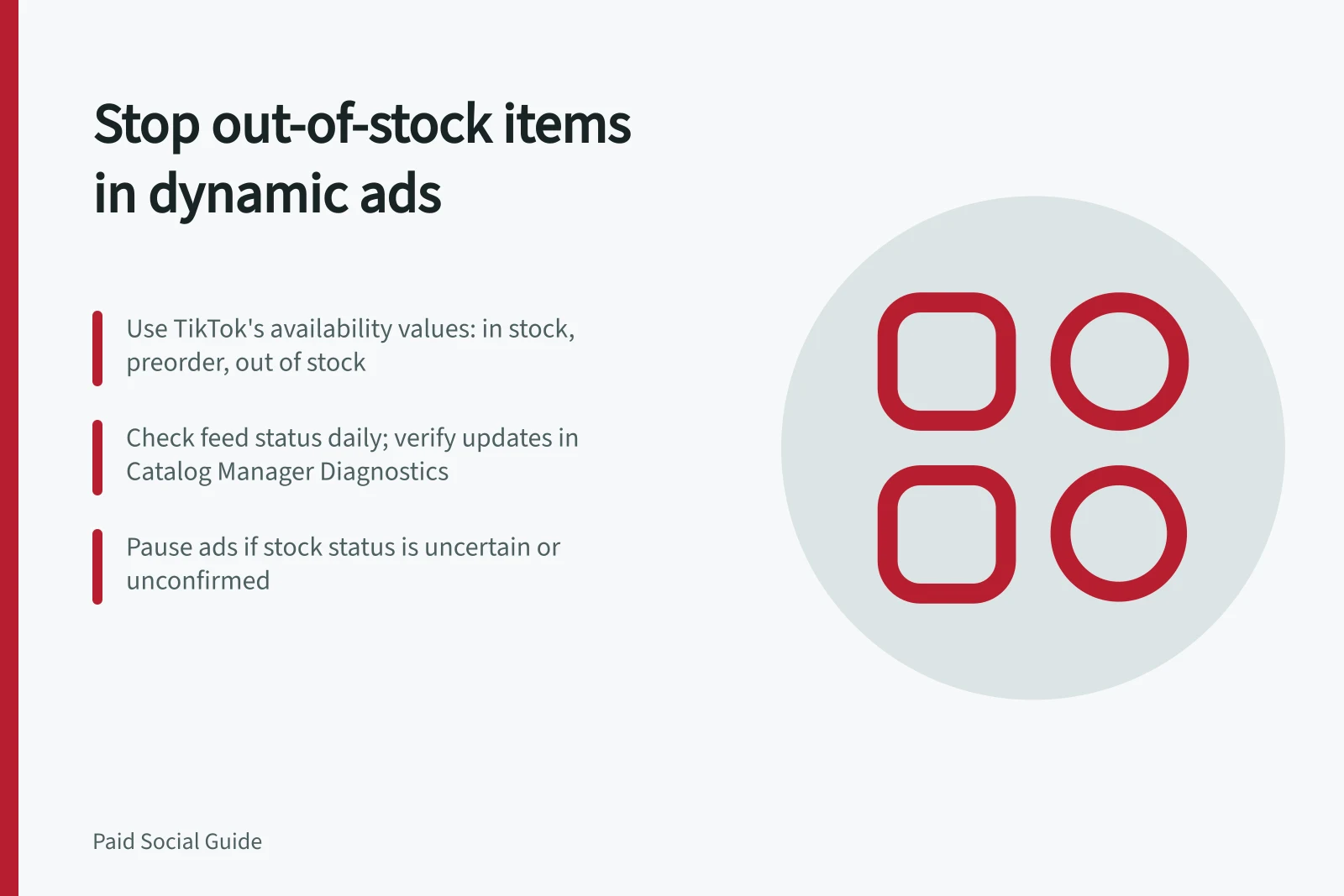
TikTok's documented commerce feed accepts availability values including in stock, available for order, preorder, out of stock and discontinued. Its Pixel Upload guide says an item marked out of stock cannot be advertised through that method. After an inventory change, check the imported product status in Catalog Manager's Diagnostics tab, including whether it is active in ad delivery.
TikTok Catalog Availability Statuses
- In stockAvailable for immediate purchase; eligible for dynamic ads.
- Available for orderNot currently in stock but can be ordered; suitable for promotion with clear terms.
- PreorderEligible only if destination page clearly states delivery terms and business can honour them.
- Out of stockCannot be advertised via Pixel Upload; must be removed from product sets.
- DiscontinuedNo longer available; should not appear in any active ads.
Trace the update
Identify who changes the inventory status, how the feed or integration carries it, when the platform receives it and where the imported item status can be checked. TikTok recommends refreshing catalogue price and availability daily, but a shop with fast-moving stock may need a quicker method.
For a stock change, check the chain:
- The store shows the correct status for the exact variant.
- The exported feed or integration carries that status and item ID.
- The catalogue shows a successful update and the new item status.
- The selected product set or ad configuration no longer includes the unavailable offer.
Use product diagnostics and available previews to investigate selection. Do not treat a preview or updated feed row as proof that no further impression can be served. Record the time at each stage to distinguish a source error from an import delay.
Tracing Stock Status Updates from Store to TikTok Ads
- Confirm stock status in storeVerify the exact variant shows correct availability (e.g., out of stock) in the store backend.
- Ensure feed or integration passes statusCheck that the exported feed or integration correctly transmits the variant’s status and item ID.
- Validate update in Catalog ManagerReview the Diagnostics tab in TikTok Catalog Manager for successful import and updated status.
- Remove from ad deliveryEnsure the unavailable product is no longer included in active product sets or ads.
Stop the offer and check restock
If the update is uncertain, remove the item from the selected set or pause the affected ad or campaign using available controls. Choose the narrowest action that reliably stops the offer, then confirm the resulting status in the account.
On restock, check that the store, product page and catalogue agree before re-enabling promotion. Review price and image too, especially after a clearance offer.
Repeated stock incidents may call for faster updates, a smaller promoted range or a business rule that excludes low-quantity items before they sell out.
Preventing Out-of-Stock Items in Dynamic Ads
- Pause affected ads immediately if stock status is uncertainUse the narrowest possible action—pause the specific ad or campaign—to stop promotion.
- Confirm restock across all systemsEnsure store, product page, and catalogue agree before re-enabling ads.
- Review price and image after restockEspecially important if a clearance offer was previously applied.
- Consider process improvements for frequent stock issuesImplement faster updates, narrower promoted ranges, or rules excluding low-quantity items.